
Notebooks 13 for iPhone & iPad
A More Powerful Way to Write and Organize on iPhone and iPad
Notebooks 13 brings a redesigned interface with better structure, clearer navigation, and modern system integration.
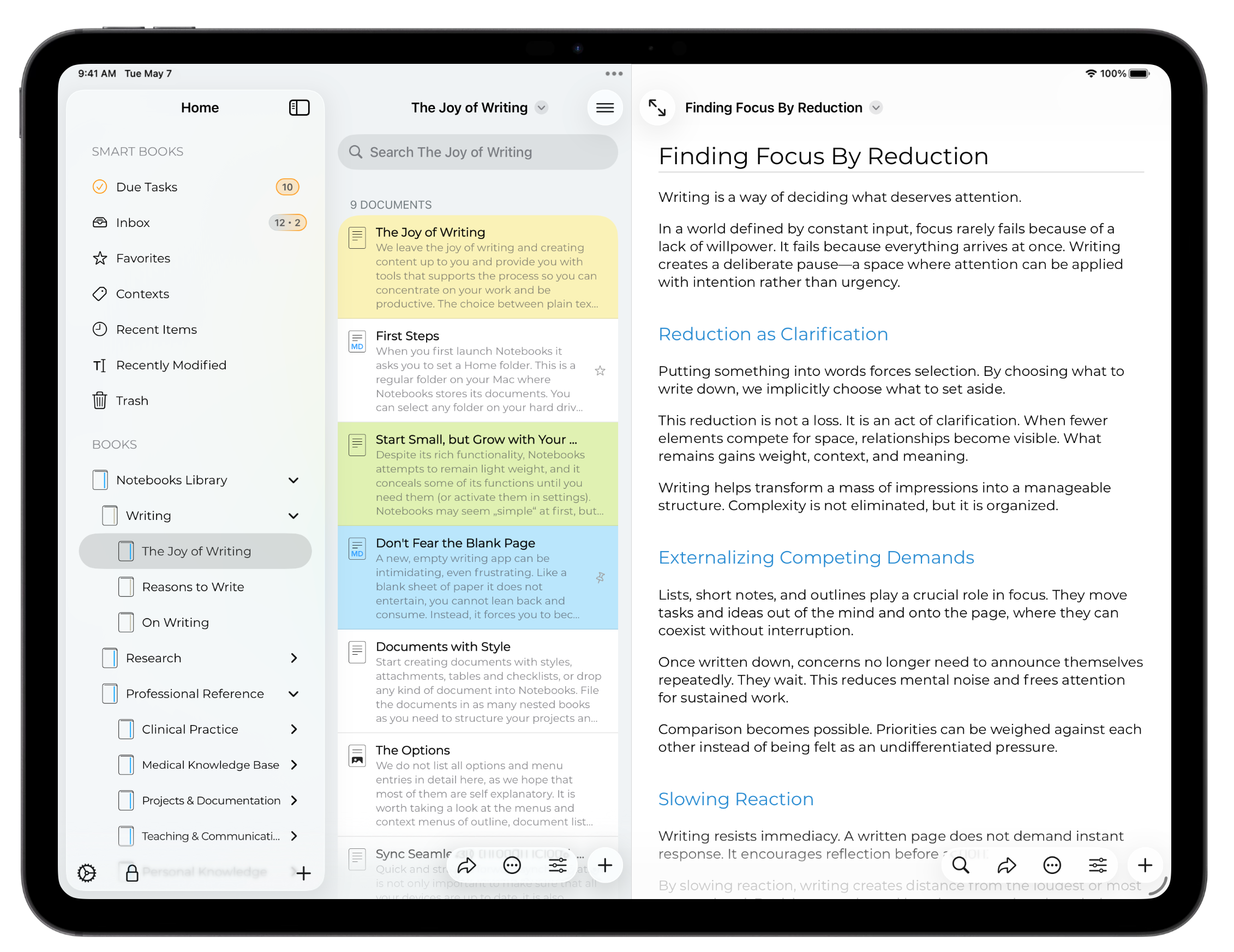
- Better structure with a new sidebar and collapsible lists
- More room to think with multi-window support on iPad
- A modern iOS experience, built with the latest system technologies
The update is available on the App Store. If you have any questions or feedback, don’t hesitate to reach out to us.
The Changes in Detail
Notebooks 13 is a major upgrade which focuses on a refined and more flexible user experience. It introduces multi-window support and three-column split view on iPad, Liquid Glass support, and a new hierarchical list of books. You’ll also notice new icons, menus, and countless adjustments that give Notebooks a more modern appearance, while continuing to support iOS versions back to 16.4.
Overall, this release is about making your everyday work in Notebooks smoother and more enjoyable.
New: Collapsible Book List
In its new sidebar, Notebooks presents your Smart Books and your regular books as a collapsible list, allowing you to quickly navigate even deeply nested hierarchies.
- On iPad, the sidebar appears in the first column of the three-column display.
- On iPhone, the sidebar becomes the new top level, from where you cannot navigate back any further.
- Selecting a book in the sidebar takes you directly to that book, without stepping through its hierarchy. Tapping the back button in the list of books and documents immediately returns you to the sidebar.
- From the sidebar you can create new books, delete existing ones, and reorganize books using drag and drop. Rename and delete are also available via long press.
- Because the sidebar already displays your Smart Books, the top-level book (Notebooks Library) in the second column does not show them by default. On iPad, Smart Books appear there when the sidebar is hidden. On iPhone, a setting allows you to change this behavior if you prefer.
New on iPad: Three-Column Split View
On iPad, Notebooks displays up to three columns: a sidebar with the collapsible list of books, the list with books and documents, and the document itself. Depending on display and window size, iPadOS may show and hide the first two columns automatically, but Notebooks provides buttons to selectively display them as well.
On iPhone, Notebooks internally uses this three-column architecture, too, although only one column is visible at any time. Notebooks’ “top level”, from where you cannot navigate back any further, is no longer the top level book, it is now the leftmost column with the sidebar.
New on iPad: Multiple Windows
Long overdue, but now Notebooks 13 allows you to open multiple windows. Each window is full featured with three-column view, so you can resize and arrange them independently, and navigate to, open and edit documents simultaneously.
- To open a document in a separate window, tap and hold its title in the document list and choose Open in New Window. The selected document opens in a separate window in document only mode (the left columns hidden).
- Notebooks’ two-up mode, which displays two documents side by side, operates slightly differently now, due to the new architecture. “Two Up” is reachable from the swipe-right or the long-tap gesture in the list. When selected, Notebooks displays the selected document in a separate window, but also hides the left columns for the current document, leaving you with two windows in document only mode. Notebooks is not permitted to tile the two windows side by side, but you can quickly arrange them with a long-press on the window’s traffic light icon.
Appearance
The overall appearance of Notebooks 13 has been modernized and streamlined with
- Liquid Glass support
- updated app icon and launch screen
- improved grouping for menus across the app
Some menu items have changed their position or moved to other menus, so a little muscle memory adjustment may be needed. Overall, we tried to clearly divide into actions for sharing or export, actions for processing, and actions referring to the document itself, like rename, move or delete, available from the item’s title menu.
A book’s sort order is one such example: there is no longer a dedicated button, it is now available from the title menu. When custom sort is selected, a Reorder button appears in the list header.
Documents
In addition to the familiar typewriter mode on iPad, Notebooks now offers a more regular fullscreen mode, which resizes the document to fill the entire window while keeping the toolbar visible.
Tasks
- Tapping a task state button now opens a menu instead of immediately toggling the state. This makes task handling more deliberate and reliable.
- Changing a task’s alert time is now saved immediately, without requiring confirmation.
Images & PDF Viewer
- New viewers provide smoother zooming and more reliable double-tap behavior when switching between fit and 100% views.
- Tapping an embedded image opens it in a slide-over window, making it much easier to return to the original document.
Search
The search bar in the document list header has been redesigned and now integrates more naturally with the navigation bar.
Protection
Improved passcode flow when locking and unlocking Notebooks, or when opening protected items.
General Stability & Fixes
- When sending multiple files to Notebooks from a share sheet, original filenames are now reliably preserved whenever possible.
- Countless minor layout refinements and stability improvements throughout the app.